This article was prepared with AI assistance using the application source code and existing tutorials. If anything is inaccurate, or you have a clearer method, please suggest a correction through this page's feedback.
Report a bug and diagnostic information
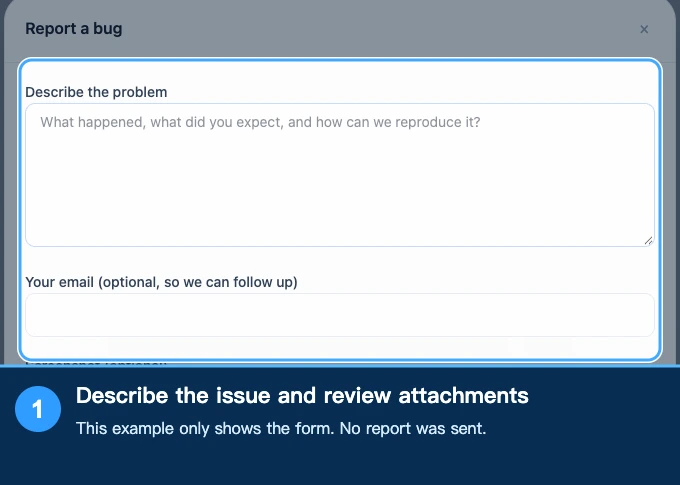
For generation failures, unusual previews, or unexpected behavior, open Report a bug from the top bar. Lumina collects the current task's diagnostic information and submits it to the official issue-collection service when you send the report. You do not need to configure a personal sending email account.
Checked against the source code available on October 19, 2026.
Reproduce the issue before opening the form
Keep the affected artwork, recipe, and settings. Perform the operation that triggers the issue, then open the form so its context reflects that state. If you replace the image or repeat the operation afterward, use the form's recollection control to update the report.
In the description, include:
- The input and color source, such as SVG with a material archive.
- The operation order and the step where the problem begins.
- What you expected and what actually happened.
- Whether it happens every time or only with a particular file.
Contact email is optional and lets the maintainer reply. It is not a sending-account configuration. Optional screenshot formats include PNG, JPG, WebP, and GIF. Follow the form's message if a file is not accepted.
What may be attached
Depending on the current task, a report can collect conversion parameters, device selections, recent actions, errors, and available source images, SVGs, models, LUTs, material archives, and generated results. Not every report has every attachment; it depends on what the session actually contains.
These files help developers reproduce the issue. Review the context and attachment notices before sending, particularly when using customer designs or artwork and models you may not redistribute. Check screenshots for account information, notifications, and other private content too.
A ticket number does not mean upload is complete
Keep the ticket identifier and watch the final upload state:
| State | Meaning and next step |
|---|---|
| Submitting or waiting for upload | Still processing; wait for the final result |
| Upload succeeded | The service received the report; this does not mean the bug is fixed |
| Upload failed | Retry and check the new result |
| Some attachments were not collected or sent | Check which files are missing and recollect if needed |
| Upload unavailable | Keep the ticket identifier and use the offered fallback report and contact options |
Do not close the form merely because a ticket number has appeared. The maintainer may not yet have the complete report while upload is pending.
If sending fails
Check the connection and retry. If it still fails, copy the fallback report and send it to the maintainer with the ticket identifier and reproduction steps. System mail or QQ Mail is a fallback in the relevant failure flow, not a prerequisite for normal submission.
If the original task was closed, its session was replaced, or files were not collected, reopen the task and collect a fresh report rather than repeatedly sending the same incomplete description.
For missing illustrations, errors, or suggestions about documentation, use the Wiki feedback page. Report software faults inside Lumina so the diagnostic context can accompany them.
Submit feedback
Your feedback is sent privately to the Wiki maintainers and is not displayed publicly on this page.