This article was prepared with AI assistance using the application source code and real interfaces. If anything is inaccurate, or you have a clearer method, please suggest a correction through this page’s feedback.
Activate Lumina Studio with the Launcher
Lumina Studio is developed publicly in the Lumina-Layers repository, and individuals and businesses may use the software free of charge. Running it from source does not require purchasing or activating the launcher. This guide covers a launcher that asks you to verify existing access; follow the interface and current official instructions for your version.
If your Lumina Launcher asks you to verify access from a purchase or support plan, follow this guide to activate it on your computer. You can then download, install, and open the Lumina Studio versions offered by that launcher.
This guide covers Afdian, a card payment on the Lumina website, and Patreon. Follow the instructions for the service that actually processed your payment.
Before you begin
- Download and install Lumina Launcher from an official Lumina distribution channel, then open it.
- Make sure your computer is connected to the internet.
- Have your order number ready, or be ready to sign in to the Patreon account used for your purchase.
On a device that has not been activated, the launcher shows Activate this device. You will see an Order number or activation code field and an Activate with Patreon button.
| How you paid | What you need | What to use in the launcher |
|---|---|---|
| Afdian | Your Afdian order number | The order number or activation code field |
| Card payment on the Lumina website (Waffo) | Your Lumina order reference, starting with LUM- | The order number or activation code field |
| Patreon | The Patreon account used for your support | The Activate with Patreon button |
If you started from the Lumina website but completed your payment on Afdian or Patreon, follow the instructions for that service. If you received a separate Lumina activation code, enter it in the same order number or activation code field.
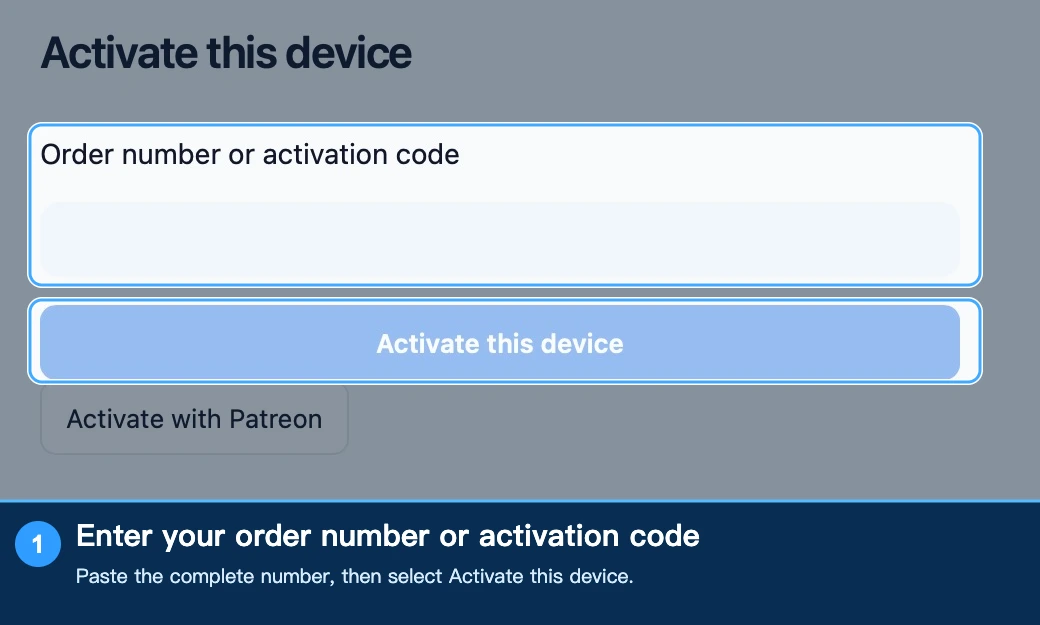
The screenshot shows the field before a number has been entered. Paste your number before selecting the activation button.
Activate an Afdian purchase
1. Find your Afdian order number
- Open the Afdian app or the Afdian website and sign in with the account you used to purchase Lumina Studio.
- On the desktop website, open Dashboard, then My Orders. In the mobile app, open your profile and choose Orders. The exact placement can vary between Afdian versions.
- Find your Lumina Studio purchase. Check the creator, purchase date, and plan to make sure you have the right order.
- In the Paid orders list, find Order No. and select Copy next to it. If your version shows the number in the order details instead, open the order and copy the complete number there.
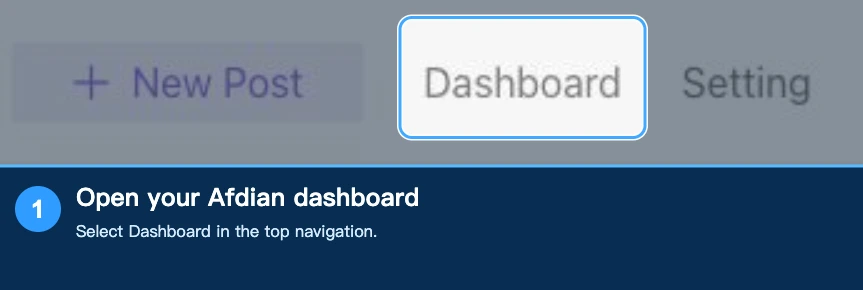
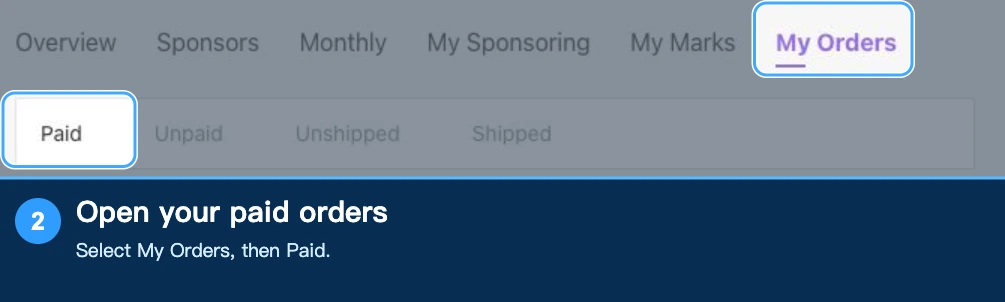

Use the Afdian order number, not the transaction number from a WeChat Pay or Alipay receipt. If the purchase is missing, check that you are using the Afdian account that made it.
2. Activate the device
- Return to Lumina Launcher and paste the order number into Order number or activation code.
- Select Activate this device and wait for verification.
- When activation succeeds, the launcher opens its home page. Continue to installation below.
The field displays dots instead of the characters you pasted. This is normal and helps protect the order information.
See the launcher screenshot near the start of this guide for the field and button.
If your order is on your phone, you can sign in to the same Afdian account in a browser on your computer, find the order again, and copy it there. Alternatively, use a private device-to-device transfer method. Do not share your order number in a public group.
Activate a card payment made on the Lumina website
1. Find your order reference on the payment result page
- After payment, return to the Lumina payment result page in the same browser you used to pay.
- Find Order reference. The complete value beginning with
LUM-is the reference needed by the launcher. - Select and copy the entire reference, including
LUM-. Do not substitute your payment provider's transaction number. - Check the status. If it says Payment confirmed, continue to activation. If it says Payment submitted or Payment status temporarily unavailable, keep the reference and wait for confirmation before trying again.
If you closed the page, look for the Lumina payment result in your original browser's open tabs or history. Use the same browser where possible. If the page cannot retrieve the reference, or you cannot find it, contact official support with the necessary proof of purchase. You do not need to pay again to recover it.
2. Activate the device
- Return to Lumina Launcher and paste the complete reference into Order number or activation code.
- Select Activate this device and wait for verification.
- When activation succeeds, the launcher opens its home page. Continue to installation below.
Afdian and Lumina website orders use the same field; there is no separate payment-method selector.
Activate with Patreon
Patreon activation uses your Patreon account. Do not enter a Patreon receipt or order number into the launcher.
1. Check which Patreon account you used
- Open Patreon in a desktop browser and sign in to the account you believe you used to support Lumina Studio.
- Open Settings from the left navigation, then select Memberships. If you are also a creator, open your account menu in the lower-left corner and go to Settings.
- Find Lumina Studio in your memberships, select View Details, and check the membership and tier.
- If Lumina Studio is missing, check whether you used another Patreon account. Once you have identified the account, continue below.
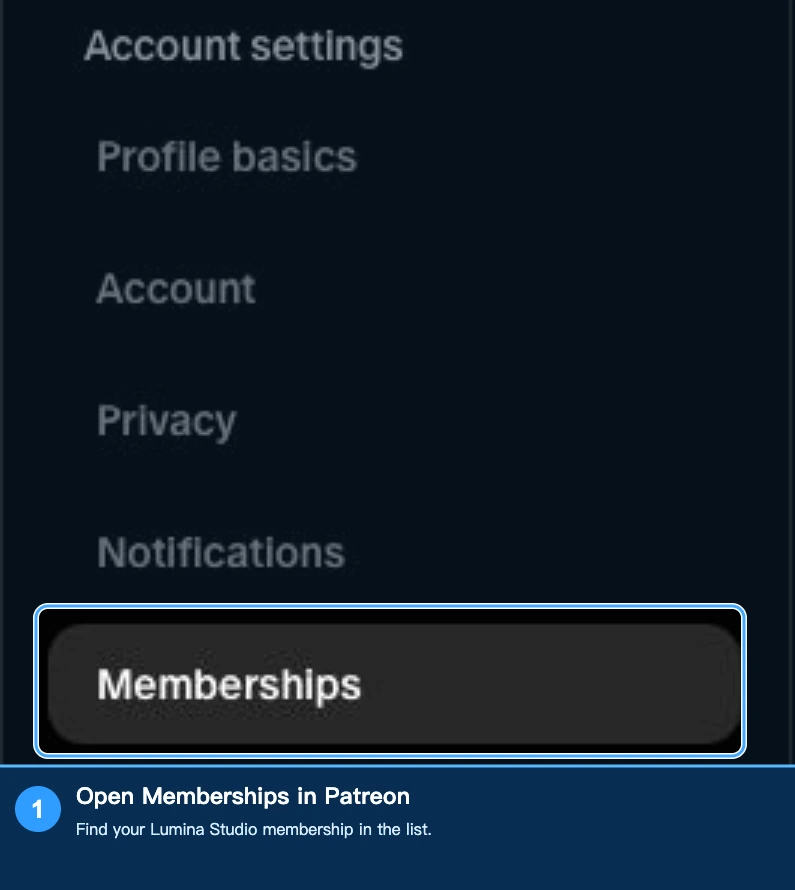
The list can include free and paid memberships. Activation depends on the benefits of your plan and the verification result.
2. Verify your Patreon account in the launcher
- On the launcher's activation screen, select Activate with Patreon.
- The launcher opens a browser. Sign in to the Patreon account used for the purchase and follow the prompts to authorize it.
- Return to the launcher and wait. When the support record and eligible access are verified, the launcher opens its home page.
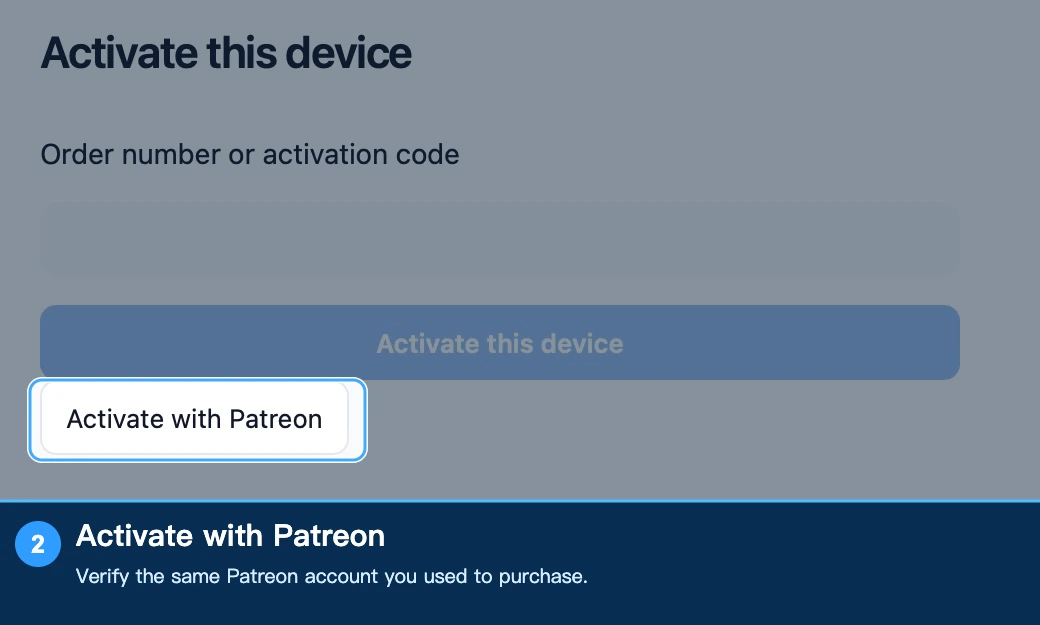
If you cancel authorization or verification times out, select Activate with Patreon and try again. Never give anyone your Patreon password.
Install and open Lumina Studio
Activation and installation are separate steps. Once the launcher shows Activated, install Lumina Studio if it is not already on this computer:
- On Home, find an available version and select Install.
- Wait for the download and installation to finish.
- Select Launch Lumina. You can also view and open installed versions from Versions.
How to copy and paste
Select the entire order number or reference with your mouse:
- Windows: press
Ctrl + Cto copy, click the launcher field, then pressCtrl + Vto paste. - Mac: press
Command + Cto copy, click the launcher field, then pressCommand + Vto paste.
You can also right-click selected text and choose Copy, then right-click in the launcher field and choose Paste. On a phone, touch and hold the number, select it, and choose Copy; the exact controls depend on the page and device.
Troubleshooting
The launcher is verifying my order. Should I pay again?
No. Keep the launcher connected to the internet and wait for verification. The launcher continues when verification finishes. Do not make another payment. If the message remains for a long time, save a screenshot and contact official support.
Activation failed. What should I check?
Make sure the purchase includes Lumina Studio access. Check the complete Afdian order number or the LUM- website reference, or confirm that you used the correct Patreon account. Check your internet connection and follow the launcher's retry instructions. If the problem remains, tell support how you paid, your launcher version, and the message you saw; include a screenshot.
I pasted the order number but only see dots
That is expected: the launcher hides the input. Make sure you copied the complete order number or activation code, then select Activate this device.
The device is activated, but no version is available
Select Check for updates and wait for the version list to refresh. If the launcher says activation information was saved but the list could not refresh, try again later; you do not need to activate again. If the list is still empty after refreshing, contact official support.
I cannot see Activate with Patreon
Make sure you have the latest launcher from an official channel. If the button is still missing, contact official support with the launcher version and a screenshot.
What should I send to support?
Include your payment channel, launcher version, what you did, and a screenshot of the message. If an order number or proof of purchase is needed, send it privately through an official support channel, not in a public group or comment. Never send account passwords or complete payment details.
Submit feedback
Your feedback is sent privately to the Wiki maintainers and is not displayed publicly on this page.